はじめに
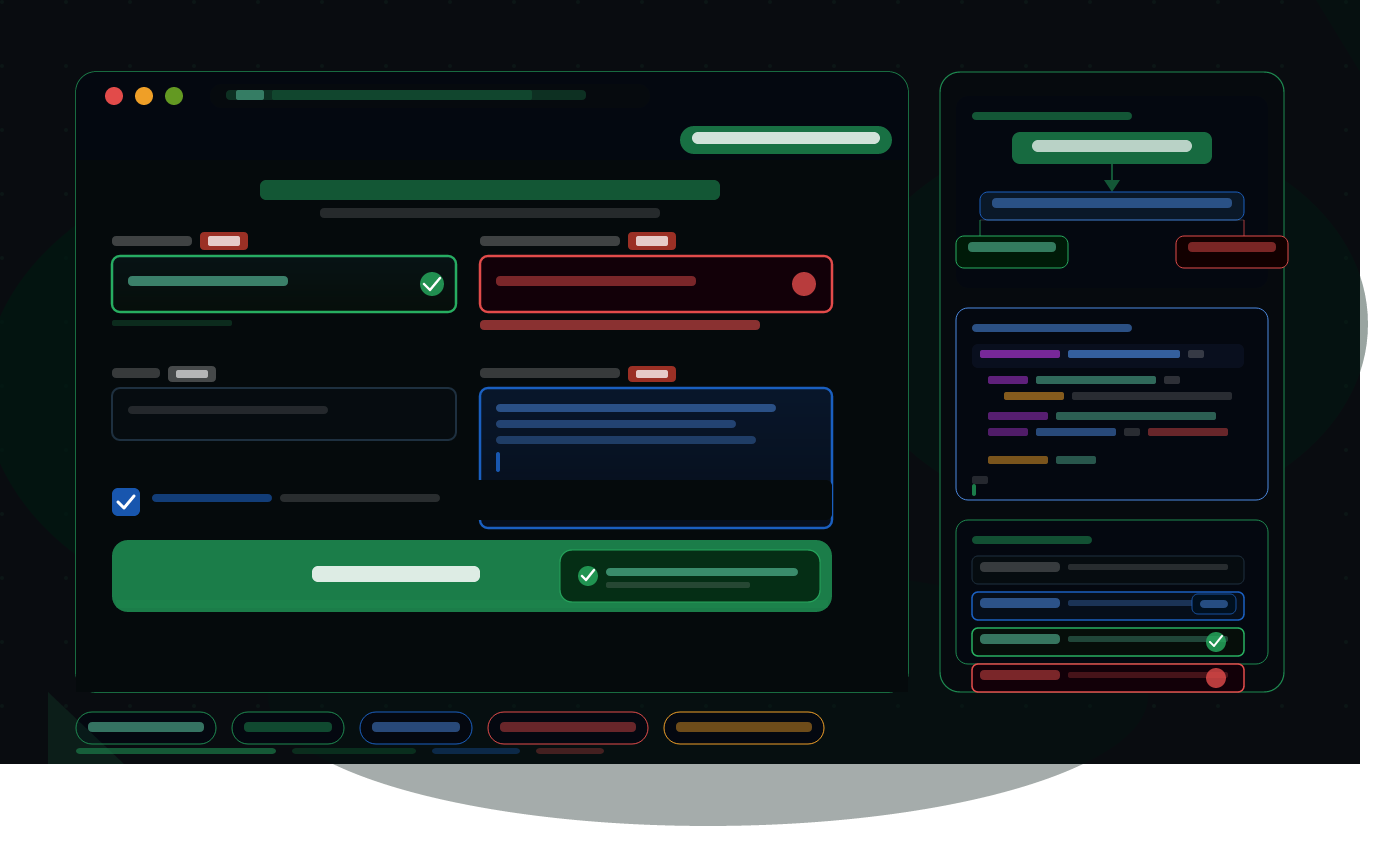
前回の記事ではCSSアニメーションを使ってサイトに動きをつける方法を解説しました。今回はお問い合わせフォームの実装方法を解説します。フォームはWebサイトにおいてユーザーとのコミュニケーションの入口となる重要な要素です。HTMLでのフォームの書き方・CSSでのスタイリング・JavaScriptでの入力バリデーション(入力チェック)まで一から丁寧に解説します。
1. フォームの基本構造をHTMLで作る
1.1 formタグの基本
フォームは <form> タグで囲んで作ります。
<form action="送信先URL" method="POST" id="contact-form" novalidate>
    <!-- フォームの中身 -->
</form>
| 属性 | 説明 |
|---|---|
action | フォームの送信先URL |
method | 送信方法(POST が一般的) |
novalidate | ブラウザ標準のバリデーションを無効化(独自バリデーションを使うため) |
1.2 お問い合わせフォームの完全なHTML
<section class="contact-section">
    <div class="container">
        <h2 class="section-title">お問い合わせ</h2>
        <p class="section-desc">ご質問・ご依頼はこちらからお気軽にどうぞ。</p>

        <form class="contact-form" id="contact-form" novalidate>

            <!-- お名前 -->
            <div class="form-group">
                <label class="form-label" for="name">
                    お名前
                    <span class="required">必須</span>
                </label>
                <input
                    class="form-input"
                    type="text"
                    id="name"
                    name="name"
                    placeholder="山田 太郎"
                    autocomplete="name"
                >
                <p class="error-message" id="name-error"></p>
            </div>

            <!-- メールアドレス -->
            <div class="form-group">
                <label class="form-label" for="email">
                    メールアドレス
                    <span class="required">必須</span>
                </label>
                <input
                    class="form-input"
                    type="email"
                    id="email"
                    name="email"
                    placeholder="example@email.com"
                    autocomplete="email"
                >
                <p class="error-message" id="email-error"></p>
            </div>

            <!-- 件名 -->
            <div class="form-group">
                <label class="form-label" for="subject">
                    件名
                    <span class="optional">任意</span>
                </label>
                <input
                    class="form-input"
                    type="text"
                    id="subject"
                    name="subject"
                    placeholder="お問い合わせの件名"
                >
                <p class="error-message" id="subject-error"></p>
            </div>

            <!-- お問い合わせ内容 -->
            <div class="form-group">
                <label class="form-label" for="message">
                    お問い合わせ内容
                    <span class="required">必須</span>
                </label>
                <textarea
                    class="form-textarea"
                    id="message"
                    name="message"
                    rows="6"
                    placeholder="お問い合わせ内容をご記入ください。"
                ></textarea>
                <p class="error-message" id="message-error"></p>
            </div>

            <!-- プライバシーポリシー同意 -->
            <div class="form-group form-group--checkbox">
                <label class="checkbox-label">
                    <input
                        class="checkbox-input"
                        type="checkbox"
                        id="privacy"
                        name="privacy"
                    >
                    <span class="checkbox-custom"></span>
                    <a href="/privacy" target="_blank">プライバシーポリシー</a>に同意する
                </label>
                <p class="error-message" id="privacy-error"></p>
            </div>

            <!-- 送信ボタン -->
            <div class="form-group form-group--submit">
                <button class="submit-btn" type="submit" id="submit-btn">
                    送信する
                </button>
            </div>

        </form>

        <!-- 送信完了メッセージ(初期状態は非表示) -->
        <div class="success-message" id="success-message" hidden>
            <p>お問い合わせを受け付けました。<br>3営業日以内にご返信いたします。</p>
        </div>

    </div>
</section>
1.3 inputのtype属性一覧
type 属性を適切に設定することでスマートフォンでのキーボード表示が最適化されます。
| type | 用途 | スマートフォンのキーボード |
|---|---|---|
text | 通常のテキスト入力 | 標準キーボード |
email | メールアドレス | @マーク付きキーボード |
tel | 電話番号 | 数字キーボード |
number | 数値 | 数字キーボード |
url | URL | URLキーボード |
date | 日付 | 日付ピッカー |
2. CSSでフォームをスタイリングする
2.1 フォーム全体のベーススタイル
/* フォームセクション */
.contact-section {
    padding: 80px 0;
    background-color: #f8f9fa;
}

.container {
    max-width: 680px;
    margin: 0 auto;
    padding: 0 24px;
}

.section-title {
    font-size: 32px;
    font-weight: 700;
    text-align: center;
    margin-bottom: 12px;
    color: #1a1a1a;
}

.section-desc {
    text-align: center;
    color: #666;
    margin-bottom: 48px;
}
2.2 フォームグループとラベルのスタイル
/* フォームグループ(各入力欄のまとまり) */
.form-group {
    margin-bottom: 28px;
}

/* ラベル */
.form-label {
    display: flex;
    align-items: center;
    gap: 8px;
    font-size: 14px;
    font-weight: 600;
    color: #333;
    margin-bottom: 8px;
}

/* 必須バッジ */
.required {
    display: inline-block;
    padding: 2px 8px;
    background-color: #E24B4A;
    color: white;
    font-size: 11px;
    font-weight: 500;
    border-radius: 3px;
}

/* 任意バッジ */
.optional {
    display: inline-block;
    padding: 2px 8px;
    background-color: #aaa;
    color: white;
    font-size: 11px;
    border-radius: 3px;
}
2.3 入力欄のスタイル
/* テキスト入力欄 */
.form-input,
.form-textarea {
    width: 100%;
    padding: 14px 16px;
    font-size: 16px;        /* 16px未満はiOSでズームが発生するため注意 */
    border: 1px solid #ddd;
    border-radius: 6px;
    background-color: #fff;
    color: #1a1a1a;
    transition: border-color 0.2s ease, box-shadow 0.2s ease;
    box-sizing: border-box;
    appearance: none;       /* ブラウザデフォルトスタイルをリセット */
}

/* フォーカス時 */
.form-input:focus,
.form-textarea:focus {
    outline: none;
    border-color: #1A5FC0;
    box-shadow: 0 0 0 3px rgba(26, 95, 192, 0.15);
}

/* エラー時 */
.form-input.is-error,
.form-textarea.is-error {
    border-color: #E24B4A;
    box-shadow: 0 0 0 3px rgba(226, 75, 74, 0.15);
}

/* 正常入力時 */
.form-input.is-valid,
.form-textarea.is-valid {
    border-color: #27AE60;
    box-shadow: 0 0 0 3px rgba(39, 174, 96, 0.1);
}

/* テキストエリア */
.form-textarea {
    resize: vertical;       /* 縦方向のみリサイズ可能 */
    min-height: 140px;
    line-height: 1.7;
}

/* プレースホルダー */
.form-input::placeholder,
.form-textarea::placeholder {
    color: #bbb;
}
⚠️ font-sizeは16px以上にしてください: iOSのSafariではinputのfont-sizeが16px未満だとフォーカス時にページが自動ズームされます。必ず16px以上に設定しましょう。
2.4 カスタムチェックボックスのスタイル
/* チェックボックスグループ */
.form-group--checkbox {
    margin-bottom: 32px;
}

.checkbox-label {
    display: flex;
    align-items: center;
    gap: 10px;
    cursor: pointer;
    font-size: 14px;
    color: #333;
}

/* デフォルトのチェックボックスを非表示 */
.checkbox-input {
    position: absolute;
    opacity: 0;
    width: 0;
    height: 0;
}

/* カスタムチェックボックス */
.checkbox-custom {
    display: flex;
    align-items: center;
    justify-content: center;
    width: 20px;
    height: 20px;
    min-width: 20px;
    border: 2px solid #ddd;
    border-radius: 4px;
    background: #fff;
    transition: all 0.2s ease;
}

/* チェック時のスタイル */
.checkbox-input:checked + .checkbox-custom {
    background-color: #1A5FC0;
    border-color: #1A5FC0;
}

/* チェックマーク */
.checkbox-input:checked + .checkbox-custom::after {
    content: '';
    display: block;
    width: 5px;
    height: 9px;
    border: 2px solid white;
    border-top: none;
    border-left: none;
    transform: rotate(45deg) translateY(-1px);
}

.checkbox-label a {
    color: #1A5FC0;
    text-decoration: underline;
}
2.5 送信ボタンとエラーメッセージ
/* 送信ボタン */
.submit-btn {
    display: block;
    width: 100%;
    padding: 16px;
    background-color: #1A5FC0;
    color: white;
    font-size: 16px;
    font-weight: 600;
    border: none;
    border-radius: 8px;
    cursor: pointer;
    transition: background-color 0.2s ease, transform 0.1s ease;
}

.submit-btn:hover {
    background-color: #0D3A7A;
}

.submit-btn:active {
    transform: scale(0.99);
}

/* 送信中の状態 */
.submit-btn.is-loading {
    background-color: #aaa;
    cursor: not-allowed;
    pointer-events: none;
}

/* エラーメッセージ */
.error-message {
    margin-top: 6px;
    font-size: 13px;
    color: #E24B4A;
    min-height: 18px;   /* エラー表示時にレイアウトが崩れないように高さを確保 */
}

/* 送信完了メッセージ */
.success-message {
    text-align: center;
    padding: 48px 24px;
    background: #f0f9f4;
    border: 1px solid #27AE60;
    border-radius: 12px;
    color: #1D7A44;
    font-size: 16px;
    line-height: 1.8;
}
2.6 レスポンシブ対応
@media (max-width: 768px) {
    .contact-section {
        padding: 48px 0;
    }

    .section-title {
        font-size: 24px;
    }

    .form-input,
    .form-textarea {
        padding: 12px 14px;
    }

    .submit-btn {
        padding: 14px;
    }
}
3. JavaScriptでバリデーションを実装する
3.1 バリデーションの方針
| 方針 | 理由 |
|---|---|
| 送信ボタンを押したときに全フィールドをチェック | 入力中にエラーを出さないことでストレスを減らす |
| エラー後は入力のたびにリアルタイムでチェック | 修正できているかをすぐに確認できる |
| エラーはフィールドの直下に表示 | どこに問題があるかを明確に伝える |
3.2 バリデーション関数の実装
// ===== バリデーションルール =====

// 名前のバリデーション
function validateName( value ) {
    if ( value.trim() === '' ) {
        return 'お名前を入力してください。';
    }
    if ( value.trim().length > 50 ) {
        return 'お名前は50文字以内で入力してください。';
    }
    return '';  // エラーなし
}

// メールアドレスのバリデーション
function validateEmail( value ) {
    if ( value.trim() === '' ) {
        return 'メールアドレスを入力してください。';
    }
    // メールアドレスの形式チェック(正規表現)
    const emailRegex = /^[^\s@]+@[^\s@]+\.[^\s@]+$/;
    if ( ! emailRegex.test( value ) ) {
        return '正しいメールアドレスを入力してください。';
    }
    return '';
}

// メッセージのバリデーション
function validateMessage( value ) {
    if ( value.trim() === '' ) {
        return 'お問い合わせ内容を入力してください。';
    }
    if ( value.trim().length < 10 ) {
        return '10文字以上入力してください。';
    }
    if ( value.trim().length > 1000 ) {
        return '1000文字以内で入力してください。';
    }
    return '';
}

// チェックボックスのバリデーション
function validatePrivacy( checked ) {
    if ( ! checked ) {
        return 'プライバシーポリシーへの同意が必要です。';
    }
    return '';
}
3.3 エラー表示・クリア関数の実装
// エラーを表示する関数
function showError( inputEl, errorEl, message ) {
    inputEl.classList.add( 'is-error' );
    inputEl.classList.remove( 'is-valid' );
    errorEl.textContent = message;
}

// エラーをクリアして正常状態にする関数
function showValid( inputEl, errorEl ) {
    inputEl.classList.remove( 'is-error' );
    inputEl.classList.add( 'is-valid' );
    errorEl.textContent = '';
}

// エラーも正常もリセットする関数
function clearState( inputEl, errorEl ) {
    inputEl.classList.remove( 'is-error', 'is-valid' );
    errorEl.textContent = '';
}
3.4 フォーム全体のバリデーション処理
document.addEventListener( 'DOMContentLoaded', () => {

    const form        = document.getElementById( 'contact-form' );
    const nameInput   = document.getElementById( 'name' );
    const emailInput  = document.getElementById( 'email' );
    const messageInput= document.getElementById( 'message' );
    const privacyInput= document.getElementById( 'privacy' );
    const submitBtn   = document.getElementById( 'submit-btn' );
    const successMsg  = document.getElementById( 'success-message' );

    const nameError   = document.getElementById( 'name-error' );
    const emailError  = document.getElementById( 'email-error' );
    const messageError= document.getElementById( 'message-error' );
    const privacyError= document.getElementById( 'privacy-error' );

    // ===== 送信ボタンのクリック =====
    form.addEventListener( 'submit', ( e ) => {
        e.preventDefault();  // ページリロードを防ぐ

        // 全フィールドを検証
        const nameMsg    = validateName( nameInput.value );
        const emailMsg   = validateEmail( emailInput.value );
        const messageMsg = validateMessage( messageInput.value );
        const privacyMsg = validatePrivacy( privacyInput.checked );

        // エラー表示
        nameMsg    ? showError( nameInput,    nameError,    nameMsg )
                   : showValid( nameInput,    nameError );
        emailMsg   ? showError( emailInput,   emailError,   emailMsg )
                   : showValid( emailInput,   emailError );
        messageMsg ? showError( messageInput, messageError, messageMsg )
                   : showValid( messageInput, messageError );
        privacyMsg ? ( privacyError.textContent = privacyMsg )
                   : ( privacyError.textContent = '' );

        // エラーがある場合は送信しない
        if ( nameMsg || emailMsg || messageMsg || privacyMsg ) {
            // 最初のエラー欄にスクロール
            const firstError = form.querySelector( '.is-error' );
            if ( firstError ) {
                firstError.scrollIntoView( { behavior: 'smooth', block: 'center' } );
                firstError.focus();
            }
            return;
        }

        // 送信処理(ここではダミー)
        sendForm();
    } );

    // ===== エラー後のリアルタイムバリデーション =====
    nameInput.addEventListener( 'input', () => {
        if ( nameInput.classList.contains( 'is-error' ) ) {
            const msg = validateName( nameInput.value );
            msg ? showError( nameInput, nameError, msg )
                : showValid( nameInput, nameError );
        }
    } );

    emailInput.addEventListener( 'input', () => {
        if ( emailInput.classList.contains( 'is-error' ) ) {
            const msg = validateEmail( emailInput.value );
            msg ? showError( emailInput, emailError, msg )
                : showValid( emailInput, emailError );
        }
    } );

    messageInput.addEventListener( 'input', () => {
        if ( messageInput.classList.contains( 'is-error' ) ) {
            const msg = validateMessage( messageInput.value );
            msg ? showError( messageInput, messageError, msg )
                : showValid( messageInput, messageError );
        }
    } );

    // ===== 送信処理(ダミー実装) =====
    function sendForm() {
        // ボタンを送信中状態に
        submitBtn.textContent = '送信中...';
        submitBtn.classList.add( 'is-loading' );

        // 実際にはここでfetchでAPIに送信する
        // 今回はsetTimeoutでダミーの送信処理を再現
        setTimeout( () => {
            // フォームを非表示にして完了メッセージを表示
            form.hidden = true;
            successMsg.hidden = false;
            successMsg.scrollIntoView( { behavior: 'smooth', block: 'center' } );
        }, 1500 );
    }

} );
4. フォームをサーバーに送信する
4.1 WordPressサイトの場合はContact Form 7を使う
WordPressサイトにお問い合わせフォームを実装する場合はContact Form 7プラグインを使うのが最も手軽です。
- 管理画面の「プラグイン」→「新しいプラグインを追加」から「Contact Form 7」をインストール・有効化します。
- 管理画面に「お問い合わせ」メニューが追加されます。
- フォームを作成してショートコードをページに貼り付けます。
4.2 静的サイトの場合はformspreeを使う
PHPが使えない静的サイト(GitHub Pagesなど)の場合はFormspreeというサービスを使うとメール送信機能を実装できます。
<!-- Formspreeを使う場合はactionにFormspreeのURLを指定するだけ -->
<form action="https://formspree.io/f/あなたのフォームID" method="POST">
    <!-- フォームの中身 -->
</form>
- formspree.io でアカウントを作成します。
- 新しいフォームを作成してエンドポイントURLを取得します。
<form>のaction属性にそのURLを設定します。
💡 無料プランでも月50件まで受信できます: 個人サイトのお問い合わせフォームであれば無料プランで十分です。
5. 実装チェックリスト
✓ <form> に novalidate を付けてブラウザ標準バリデーションを無効化しているか
✓ inputの type 属性を適切に設定しているか(email・tel など)
✓ inputの font-size を16px以上にしてiOSのズームを防いでいるか
✓ ラベルと入力欄を for 属性と id 属性で関連付けているか
✓ 必須項目に required バッジを表示しているか
✓ エラーメッセージはフィールドの直下に表示されているか
✓ 送信ボタンを押した後にエラーがあれば最初のエラー欄にスクロールしているか
✓ 送信中はボタンを無効化して二重送信を防いでいるか
✓ 送信完了メッセージを表示しているか
✓ スマートフォンでも入力しやすいかを確認しているか
まとめ
今回はお問い合わせフォームの実装方法をHTML・CSS・JavaScriptに分けて解説しました。ポイントをまとめると:
<form>にnovalidateを付けてブラウザ標準バリデーションを無効化し独自バリデーションを実装する- inputの
type属性を適切に設定するとスマートフォンのキーボードが最適化される - font-sizeは16px以上に設定しないとiOSでフォーカス時に自動ズームが起きる
- バリデーションは「送信時に全チェック・エラー後はリアルタイムチェック」の方針が使いやすい
- エラーは入力欄の直下に表示してどこを修正すれば良いかを明確に伝える
- 送信中はボタンを無効化して二重送信を防ぐ
- WordPressならContact Form 7・静的サイトならFormspreeで簡単にメール送信機能を追加できる
次の記事では、GitHubを使ったポートフォリオサイトの公開方法を解説します。GitHub Pagesを使って無料でサイトを公開する手順を一から解説します。お楽しみに!
コメント